Screen, game & call recorder for Windows — record automatically.
Record your screen, games and audio for free. Add a webcam overlay that never covers your game, record smoothly with your graphics card, and let Pro capture WhatsApp, Teams and Zoom calls automatically.
Free basic recording · Optional monthly or yearly Pro · Privacy policy
Everything you need to record Windows — games, calls and tutorials
Built around one idea: never miss a recording, and never let the recorder get in your way.
Record WhatsApp, Teams, Zoom and Telegram calls — hands-free
KDesk Studio detects supported WhatsApp, Telegram, Microsoft Teams, Zoom and browser calls, including muted calls and web versions like Teams, WhatsApp Web and Telegram Web. Choose Off, Audio only, or Screen + audio for each app. Automatic recording never starts over a recording you already have running.
New in version 1.0.7
Built for gamers and streamers — and more reliable for everyone.
Your webcam in the video, not on your screen
Add your camera to recordings and live streams without covering the game. Free users pick a corner; Pro lets you drag and resize it, even mid-recording, using an on-screen adjust window that is hidden from the recording and lets clicks pass through to your game.
Smooth 60 fps with your graphics card
MP4 and MKV recordings use NVIDIA NVENC, Intel Quick Sync or AMD AMF automatically, with GPU frame conversion for low CPU use. If no hardware encoder is available, KDesk Studio switches to software encoding on its own.
Hotkeys that work in full-screen games
Start, stop, pause and control the webcam without leaving your game — even in titles that block normal Windows shortcuts. Change any shortcut in Settings, including single F-keys like F9.
Smarter call detection, steadier recordings
Muted calls are now detected, and web calls in Teams, WhatsApp Web and Telegram Web use their own recording mode. Recordings stay correct when a game changes the display resolution, and KDesk Studio can optionally start with Windows in the tray.
Free screen recorder. Pro when you need more.
Basic screen and audio recording is free. Either monthly or yearly Pro unlocks all Pro features while active. You only need one plan.
Free
- Screen & audio recording — no time limit
- Webcam overlay in a corner
- Microphone; supported system audio in audio-only mode
- WebM video; MP3, WAV & FLAC audio
- Custom hotkeys that work in games & library
- MP4 / MKV / MOV with hardware encoding
- Region, scheduling, presets, last-30-seconds
- Automatic call recording
Pro
- Everything in Free
- MP4, MKV & MOV with GPU hardware encoding
- Webcam placement, resize & on-screen adjust
- Region recording
- Capture presets & custom presets
- Scheduled start & auto-stop timer
- Keep the last 30 seconds with a hotkey
- Per-app automatic call recording
- System audio in screen recordings
- YouTube & Facebook live streaming
Privacy
- Recordings stay on your device
- Online streaming only when you start it
- No KDesk account for local recording
- You own every file you create
- Payments handled by Microsoft
- No card details on our servers
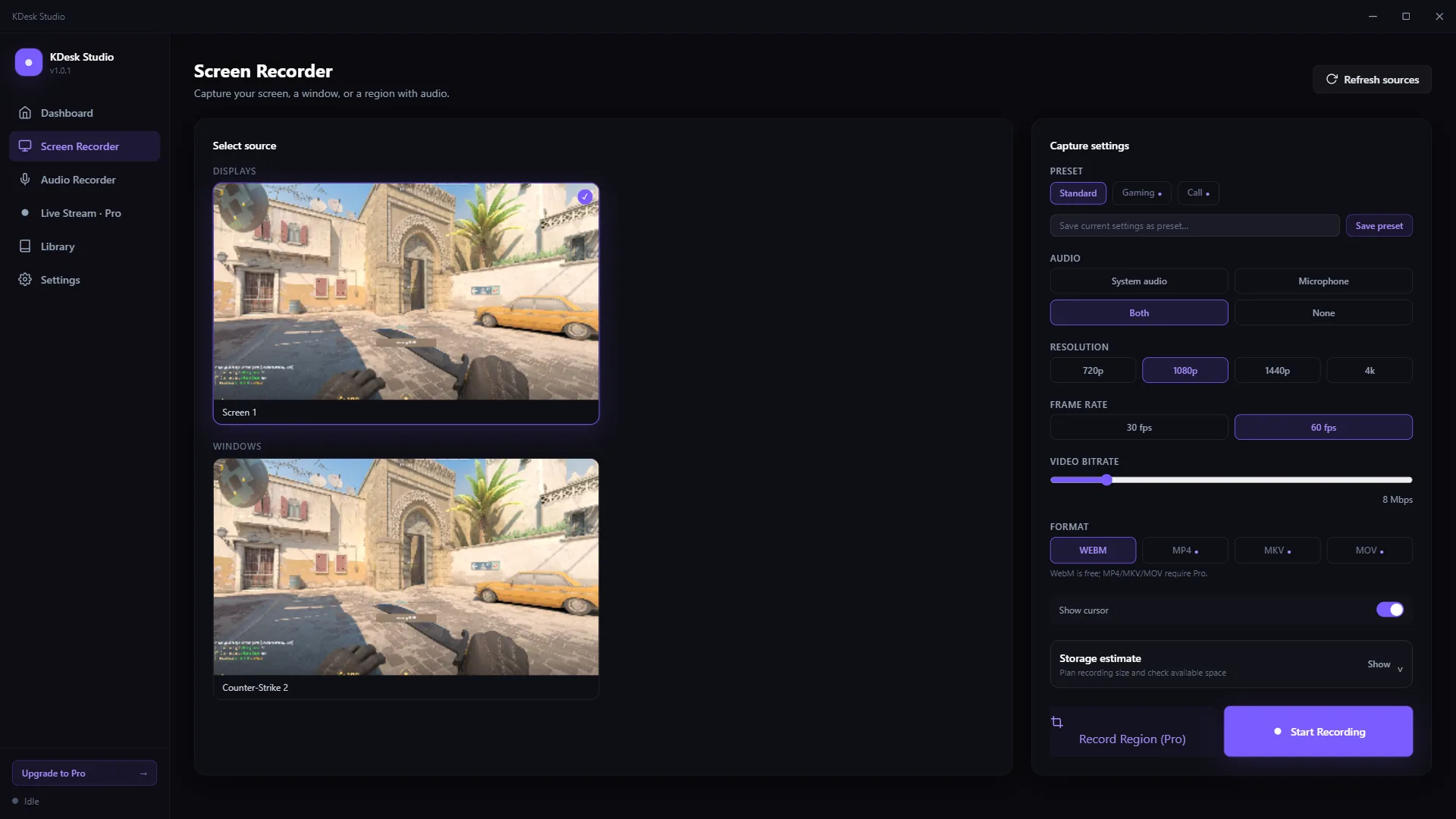
See KDesk Studio in action
Screenshots from KDesk Studio. Pro features require an active subscription; streaming is subject to platform requirements.


Frequently asked questions
Is KDesk Studio free?
Yes. Screen and audio recording, WebM video, MP3/WAV/FLAC audio, global hotkeys and a webcam overlay in a corner are free with no time limit. Pro (monthly or yearly through Microsoft Store) adds MP4/MKV/MOV, region recording, automatic call recording, free webcam placement, presets, scheduling and live streaming.
Can KDesk Studio record WhatsApp, Teams and Zoom calls automatically?
Yes, with Pro. KDesk Studio detects supported WhatsApp, Telegram, Microsoft Teams, Zoom and browser calls, including muted calls and web versions such as Teams, WhatsApp Web and Telegram Web, and records audio only or screen and audio, as you choose for each app. Make sure recording is allowed where you live and let others know.
Does the webcam overlay cover my game while I play?
No. The webcam is drawn only into the recording or live stream, never on your screen. To move it while recording, open the adjust window with a hotkey; that window is hidden from the recording and lets clicks pass through to your game.
Do the hotkeys work inside full-screen games?
Yes. Many games block normal Windows hotkeys, so KDesk Studio also checks the configured keys directly. You can change every hotkey in Settings, including single F-keys such as F9.
Does KDesk Studio use my graphics card to record?
Yes. MP4 and MKV recordings use the first available hardware encoder (NVIDIA NVENC, Intel Quick Sync or AMD AMF) for smooth 60 fps recording with low CPU use, and fall back to software encoding automatically if none is available.
Where are my recordings saved?
On your PC, in your Videos folder by default or a folder you choose. KDesk Studio does not upload recordings; content only leaves your device if you start a live stream or share files yourself.
Which versions of Windows are supported?
Windows 10 version 2004 or later and Windows 11. Get KDesk Studio from the Microsoft Store.
Ready to record?
Get KDesk Studio from the Microsoft Store. Start with free recording and add Pro when you need more.
Windows 10 (2004+) / 11 · Optional paid Pro subscription · Store pricing and availability apply.